.jpg.ecf121beb946b4658004c1b7dc134c20.jpg)

Dennis Maidon
Administrators
-
Joined
-
Last visited
-
-
-
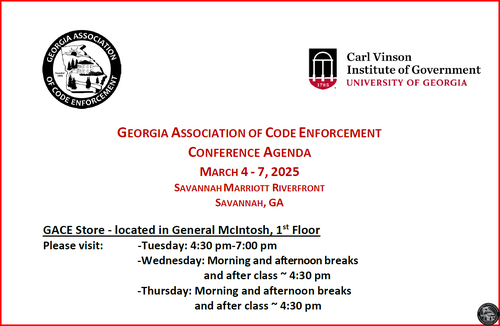 Preliminary Agenda - GACE Spring 2025. updated 1.7.25.pdf
 -
 GACE 2025 Spring Registration Form - Final.pdf
 -
2025 GACE Absentee Ballot.pdf
-
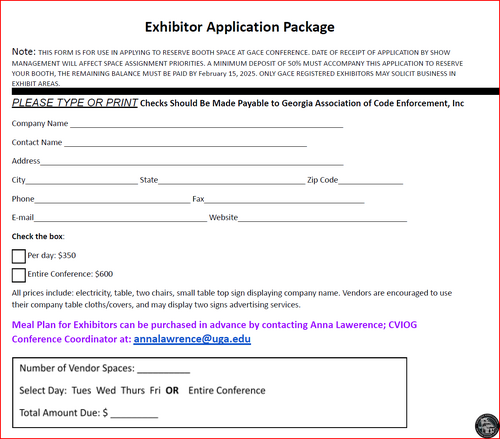 VENDOR APPLICATION GACE.docx.pdf
 -
 Another test
 -
Test comment
-
-
There is a new feature that is in the b10 release. When you are in the forums, if a user is online, a green object will appear in the upper left corner of the post. See the example below. I don’t know if this will carry to the final release but, hopefully it will. user_online.mp4
-
Not a problem.

-
Mickey, if you really need to know this information, you may wish to post on the GACE Forums. This is a beta test site and gets very little traffic.
-
Yea, I wish the options were also at the top of the screen in the user menu but, alas, they are not. Thanks for trying out the system.
-
This is the grave of Mike O’Day He died maintaining his right of way His right was clear, his will was strong He’s just as dead as if he had been wrong.
-
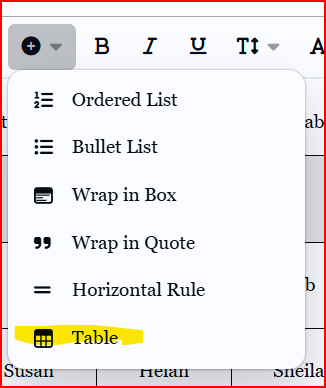
Just trying out the new feature to create tables. Just click on the “+” icon and then select “Table”. It’s a bit clumsy to work with at present but, I’m sure it will get better over time. 1 2 3 Jim John Bob Susan Helan Sheila